
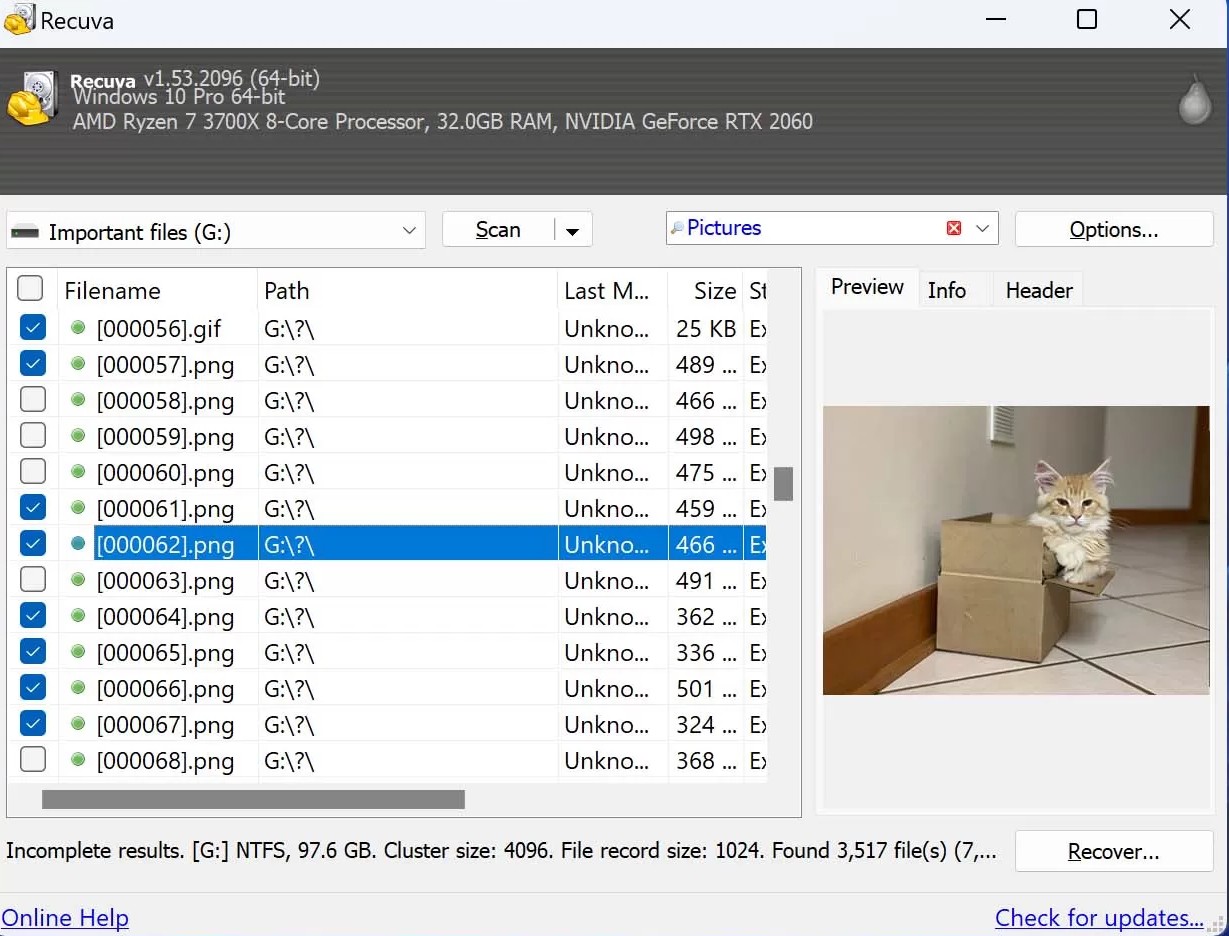
A mapped drive letter can feel “local,” but the bytes often live on another machine entirely. SMB shares, NAS appliances, and cloud sync engines each have their own delete semantics, recycle features, and snapshot schedules. Local block-level recovery tools only see what Windows exposes as a volume—and even then, the interesting story may be on the server side.
This article sets expectations for help-desk triage: what questions to ask, what to check on the NAS admin UI, and why “run Recuva harder” is sometimes the wrong prescription.
What “local recovery” can and cannot see
If a file lived in a synced cloud folder that never fully hydrated to NTFS, you may not have the classic cluster story at all. If a file lived on a NAS share, the recycle bin you care about might be the NAS recycle, not the workstation’s Recycle Bin. Your first step is mapping where the authoritative copy lived—not picking a scan mode.
Questions that save hours
- Was the path a UNC share, a mapped letter, or a local folder synced by a client?
- Did the user delete from File Explorer, from a web UI, or from a mobile app tied to the same account?
- Does the NAS have snapshots (ZFS/Btrfs), previous versions integration, or a recycle folder per share?
- Is the “missing data” actually offline placeholder files (cloud-only) rather than deleted local bytes?
Browser-only cloud folders
If the user never had the file fully downloaded, local carving cannot invent cloud-side content. In that situation, the recovery path is account recovery, admin restore, or vendor support—not another deep scan pass on C:.
When local tools still matter
Local tools matter when the authoritative copy truly lived on a local volume: external disks, internal data partitions, and fully materialized sync folders. The skill is confirming the “where” before spending emotional energy on the “how.”